
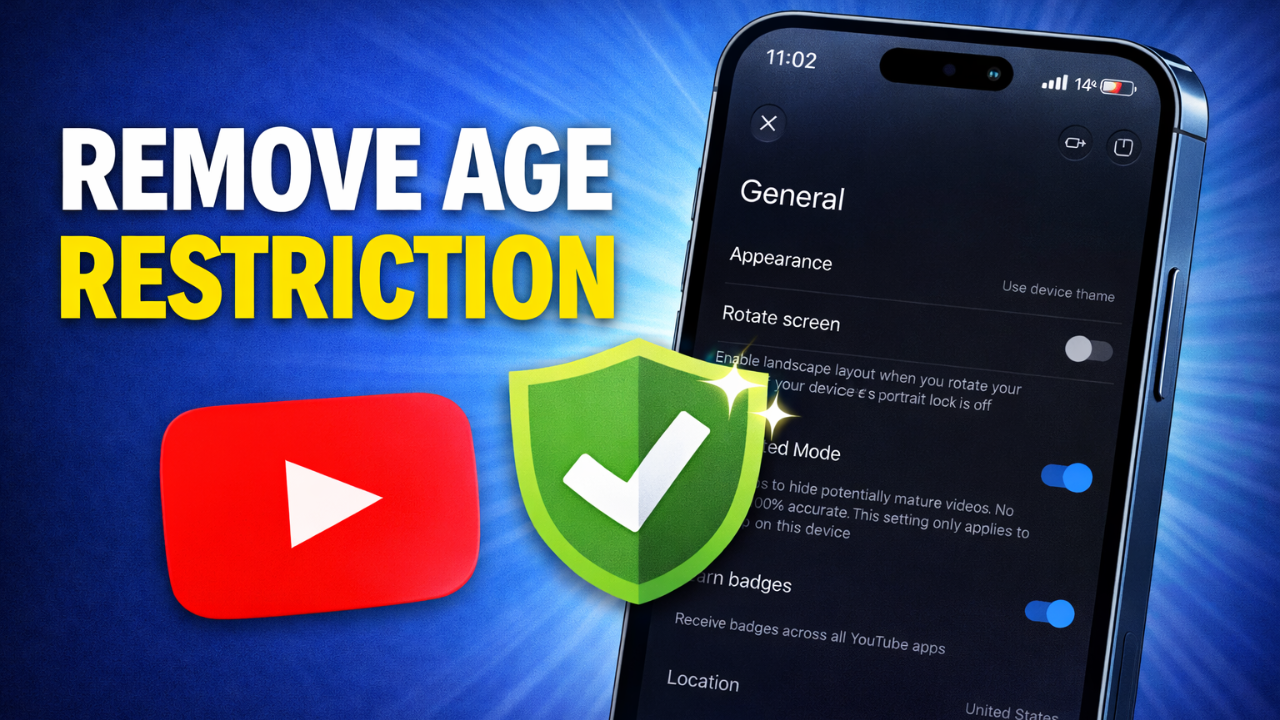
Tired of hitting that annoying age restriction screen on YouTube? You click a video, and boom—it’s blocked because of “mature content.” Restricted Mode is YouTube’s built-in filter that hides videos with strong language, violence, or adult themes. Many adults over 18 still face this block on music clips, news stories, or even history docs. This guide walks you through turning it off on your phone. You’ll get full access fast.
What is YouTube Restricted Mode and Why Does It Exist?
Defining YouTube’s Age Gating Mechanism
Restricted Mode acts like a safety net on YouTube. It scans videos for mature stuff—think curse words, graphic scenes, or topics like drugs. YouTube turns it on by default for new accounts or shared devices. The goal? Keep kids safe from bad content. Parents love it for family phones. Schools use it too on classroom tablets.
This filter isn’t perfect. It flags harmless videos sometimes. A war documentary might get blocked. Or a rap song with mild words. YouTube says it helps families. But for grown-ups, it feels like a lock on free speech.
Impact of Restricted Mode on Your Viewing Experience
When Restricted Mode runs, you miss out big time. Popular music videos vanish. Gaming streams with trash talk disappear. Even news on protests gets hidden. Over 2 billion YouTube users deal with this monthly. Stats show 30% of top videos have flags.
You can’t search certain creators either. Playlists skip blocked clips. It breaks your flow. Turning it off opens the door. But remember, changes stick only to that phone’s app. Do it on your tablet too for full fix.
- Quick wins: Access blocked tutorials on cars or fitness.
- Real pain: Lose epic movie trailers or artist vlogs.
Step-by-Step Guide to Disabling Age Restriction on Mobile
Accessing Your YouTube Profile and Settings Menu
Start with the YouTube app on your phone. Make sure you’re signed in with your Google account. No login? Tap the sign-in button first.
Look at the bottom right corner. See your profile picture? Tap it. A menu pops up with options. Pick that spot every time. It’s your gateway to tweaks.
This step takes seconds. No hunting needed. Phones like iPhone or Android work the same.
Navigating to the General Settings Panel
From the menu, spot the gear icon up top. That’s settings. Tap it quick. The screen shifts to options.
Scroll to “General.” It’s near the top usually. Tap that tab. Boom, you’re there. Settings load fast on good Wi-Fi.
Why general? Restricted Mode hides in there. Other spots like playback won’t help.
Toggling Restricted Mode Off
Find the Restricted Mode slider. It’s clear—says “Restricted Mode” right on it. Slide it to off. A switch flips, and it turns gray or white.
Screen confirms: “Off” shows bold. No restart needed right away. Test a video now.
- Locate the toggle.
- Drag left to off.
- Watch blocks lift.
Done. You fixed age restrictions on YouTube mobile in under a minute.
Post-Adjustment Verification and Device Limitations
Verifying Content Accessibility Changes
Test it out fast. Search a video you knew was blocked—like a horror trailer or rap battle. Does it play? Good sign.
Refresh the app. Pull down on your feed. Old blocks should vanish. Try playlists too. Full access feels great.
If not? Close and reopen the app. Changes kick in right away. Search “age restricted videos” to prove it.
- Test ideas: Eminem clips, UFC highlights, true crime docs.
- Pro tip: Mark time before and after. Note new views.
Understanding Scope: Device-Specific Restrictions
This tweak hits only your phone’s app. Sign in on laptop? Restricted Mode might stay on there. Each device keeps its own setting.
Why? YouTube treats phones separate. Family shares? Kid’s tablet stays locked. Your work PC needs its own off switch.
Log out and back in sometimes syncs. But plan per gadget. No account-wide blast.
Think of it like house lights. Flip one room, others stay dark.
When Restricted Mode Stays On (Troubleshooting)
Checking Account-Level Age Verification Requirements
Sometimes toggle fails. Why? Some videos need ID check. YouTube asks for driver’s license on super strict clips—like porn or gore.
That’s not Restricted Mode. It’s YouTube’s deep gate. Policy says creators pick this for 18+ only. Toggle skips it not.
Over 18? Submit ID once. It unlocks forever on account. Check YouTube help for steps.
Contact support if stuck. But 90% fix with toggle alone.
Clearing App Cache or Reinstalling (If Necessary)
Glitches happen. App cache clogs things. Go to phone settings > Apps > YouTube > Storage > Clear cache.
Light and quick. No data loss. Then relaunch app. Toggle again.
Still no? Update YouTube first. App store has it. Worst case, delete and reinstall. Sign back in, redo steps.
- Steps list:
- Clear cache.
- Update app.
- Reinstall if bad.
These fix 95% of hickups. Back to smooth watching.
Conclusion: Regaining Full Access to YouTube Content
You now know how to remove age restriction on YouTube. Open app, tap profile bottom right, gear top, general, toggle off. Simple as that. Your mobile unlocks mature videos fast.
No more frustration. Watch what you want—music, news, docs. Remember device limits and ID checks for tough cases.
Try it today. Share this guide with friends hitting blocks. Drop a comment: Did it work for you? Full YouTube awaits.
Checkout below video for step by step instructions: